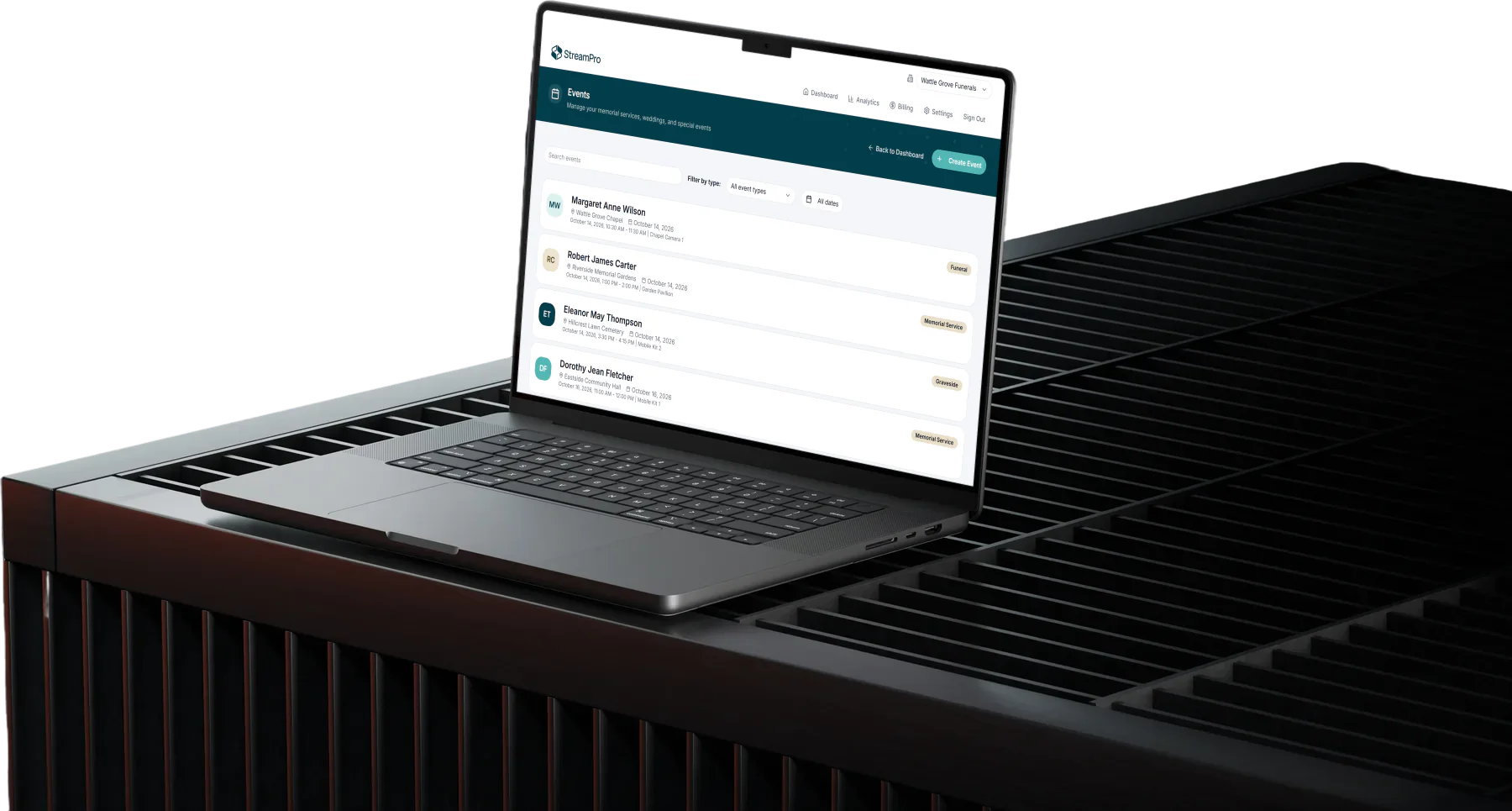
Moving your funeral live streams from Vimeo to StreamPro takes about a week, and most of it is done before your first service on the new platform. The order matters: save your recordings first, test second, and cancel Vimeo last.
Rather hand it over? Give StreamPro access to your Vimeo account and website, and we can do most of this work for you: moving your past recordings, building your website integration, replacing old Vimeo players and helping set up your encoder. You stay focused on families while we handle the move. See "We'll help you move" at the end of this guide.
Many funeral homes started streaming on Vimeo because it was quick to set up. Since 2025, Vimeo has been sold to new owners (Nasdaq notice) and closed Vimeo On Demand in November 2026 (Vimeo notice). It also shut down Livestream.com, its dedicated live streaming platform, and deleted any videos still on it after June 2025 (Vimeo). If you are reviewing where your services are streamed and stored, this guide walks you through a calm, low-risk move.
StreamPro and Vimeo at a glance
StreamPro is built for one job: streaming and keeping funeral services, with people in Australia to help.
| StreamPro | Vimeo | |
|---|---|---|
| Built for | Funeral homes and memorial services | General business and creator video |
| Live streaming | Included on every account | Only on Professional, Studio and Enterprise plans |
| What you pay | A monthly subscription plus a fee per streamed service | A fixed plan fee, however many services you stream |
| Support | Australian-based phone support, with local AV partners who can visit your chapel | 24/7 written support, live chat during live events, phone support on Enterprise only |
| Your website | We build the integration with your website for you | You add and manage video players yourself |
| Funeral software | Integrates with some funeral management software for less double data entry. | No funeral software integration |
Vimeo details from the Vimeo Help Center: plans, support and Enterprise.
You will need:
- Your Vimeo login (an account owner or admin)
- Access to your streaming encoder or streaming software
- Access to your website, or the person who manages it
- Your Vimeo renewal date
Step 1: Take stock of what's on Vimeo
Before changing anything, write down what you have, so nothing gets lost during the move. Half an hour with this checklist is usually enough.
- Recordings to keep. Count your past service recordings and decide how many years you need, based on your own retention policy and what you've promised families.
- Where streams are shown. List every place a Vimeo player or link appears: tribute pages on your website, Facebook posts, emails and texts sent to families.
- Encoder settings. Note how you currently stream: a hardware encoder, OBS, vMix or another program, and which camera and audio feeds it uses.
- Upcoming services. Check which streamed services are booked in the next two weeks, so you can choose a quiet day to switch.
- Renewal date. Find your Vimeo plan's renewal date in your account's billing settings. Plans are often billed yearly, so this date sets your deadline.
Step 2: Download your past recordings from Vimeo
Save a copy of every recording you need while your Vimeo account is still active. Vimeo doesn't support bulk downloads, so allow time to do them one by one (Vimeo Help Center).
For each video, Vimeo's steps are (Vimeo Help Center):
- Open your library and click the video.
- On the video settings page, click the arrow on the Share button in the top right corner.
- Choose Download.
- Click the download icon next to the highest-quality version available.
A few tips that save headaches later:
- Name files consistently, for example "2026-10-14 Smith, John.mp4", so you can find a service quickly when a family asks.
- Keep two copies, such as an external drive and your business cloud storage. Vimeo deletes your original source files 60 days after a paid plan ends, so don't rely on it as your archive (Vimeo Help Center).
- Got hundreds of recordings? Talk to us before you start. See the last section of this guide.
Step 3: Set up StreamPro and connect your encoder
You can keep the camera, encoder and software you already use. Switching is mostly a matter of pasting a new stream address and key into your encoder.
- Create your StreamPro account and add your chapels or venues.
- Copy your stream details (the server URL and stream key) from your StreamPro dashboard.
- Paste them into your encoder in place of the Vimeo details. In OBS or vMix this is the custom RTMP server setting. On a hardware encoder it's usually under streaming or RTMP settings.
- Save your Vimeo settings first by taking a photo or screenshot, so you can switch back quickly if you ever need to.
While you're in the settings, check the basics that make the biggest difference on the day:
- Use a wired internet connection for the encoder, not Wi-Fi.
- Take audio from your sound desk, not the camera's built-in microphone.
- Stream at 1080p. Our guide to live streaming a funeral covers cameras, audio and internet in more detail.
We can help with any of this, and our partners around Australia can visit your chapel if you'd like someone on site. Find one near you in our Find a Streamer directory.
Step 4: Run a test stream, then your first service
Do a full test from the chapel before you stream a real service on StreamPro. Keep Vimeo active during this step as a fallback.
- Test at the time you hold services. Internet upload speed can change through the day, so a 10 am test tells you more about a 10 am funeral than a 5 pm one.
- Watch it the way a family would. Open the viewing link on a phone and on a laptop, away from your office network if you can.
- Check the sound. Speak at the lectern and play the music you'd normally use. Viewers will forgive a soft picture, but not a eulogy they can't hear.
- Try rewind. StreamPro lets viewers rewind a live stream, so someone who joins late can go back to the start. Check it works for you.
- Stream your first service on a day with a simple service and a staff member who's comfortable with the setup.
Once two or three services have gone smoothly, you're ready to finish the move.
Step 5: Update your website and share links
Old Vimeo players and links can stop working once you remove the videos or your paid plan ends. Use the list from Step 1 to update them first.
- New services: send families the StreamPro viewing link for every service from now on, and add it to your service notice template.
- Tribute pages on your website: swap each Vimeo player for the StreamPro one. If your website manager looks after this, send them the list from Step 1, or we can build a custom integration for you as part of the move (see the last section).
- Past services families still visit: make sure those recordings are in StreamPro before you replace their old links.
- Social media posts: you don't need to edit every old post. Focus on recent ones, and the ones families are most likely to go back to.
If a family contacts you about an old link that no longer works, you'll have your downloaded copy from Step 2 to fall back on.
Step 6: Cancel or downgrade Vimeo before it renews
Cancel last, once you're confident nothing still depends on Vimeo. Aim to do it a week or two before your renewal date so you don't pay for another year.
Before you cancel, check that:
- Every recording you need is downloaded and saved in two places
- Your website and recent links point to StreamPro, since Vimeo locks most private and embedded recordings once your paid plan ends
- At least two or three services have streamed smoothly on StreamPro
- Staff know the new process and where the stream details live
Then turn off automatic renewal in your Vimeo billing settings. If you use Vimeo for other videos, such as marketing clips, you may be able to drop to a cheaper plan instead of cancelling. Vimeo's live events are only included on its Professional, Studio and Enterprise plans, so you no longer need to pay for those (Vimeo Help Center).
We'll help you move
You don't have to do this alone. Funeral homes switching from Vimeo to StreamPro get:
- Free archive migration. Give us access and we'll move your past recordings into StreamPro for you, so you can skip most of Step 2.
- Custom website integration. We'll build a StreamPro integration for your website, so each service's live stream and recording appears on its tribute or service page automatically, styled to match your site. We'll also replace your old Vimeo players, so you can skip most of Step 5.
- No paying twice. Your StreamPro subscription is free until your Vimeo plan is due to renew.
- Setup help. Our Australian support team will help you connect your encoder and run your test stream, with AV partners available on site if you need them.
Get in touch and we'll plan your move around your service schedule.
Sources
- Livestream.com Changes: What Users Need to Do Next, Vimeo blog
- Vimeo On Demand shutdown notice, Vimeo
- Information Regarding the Merger of Vimeo, Inc., Nasdaq
- About Vimeo plans, Vimeo Help Center
- About contacting Vimeo Support and response times, Vimeo Help Center
- About the Vimeo Enterprise plan, Vimeo Help Center
- How to download a video from my library, Vimeo Help Center
- How to download a video on Vimeo, Vimeo Help Center
- FAQ: Lapsing from a paid account to a Free account, Vimeo Help Center
Common questions
Do I need new equipment to move from Vimeo to StreamPro?
No. StreamPro works with the encoders and streaming software most funeral homes already use. You change the stream details, not the hardware.
Will families notice the change?
Only that they get a new link. Viewing works in any modern browser on a phone, tablet, computer or smart TV, with no app or account needed.
What happens to my old Vimeo links?
When your paid plan ends, Vimeo moves your account to its Free plan. Recordings over its 3 GB limit for private and embedded videos are locked and stop playing on your website, starting with the newest. Download everything and update your links before your plan ends.
How long does moving from Vimeo to StreamPro take?
Most funeral homes can finish in a week. Downloading a large archive takes the longest, and you can do it in the background while you test. If you give us access, we can move your recordings for you.